A simpler layout
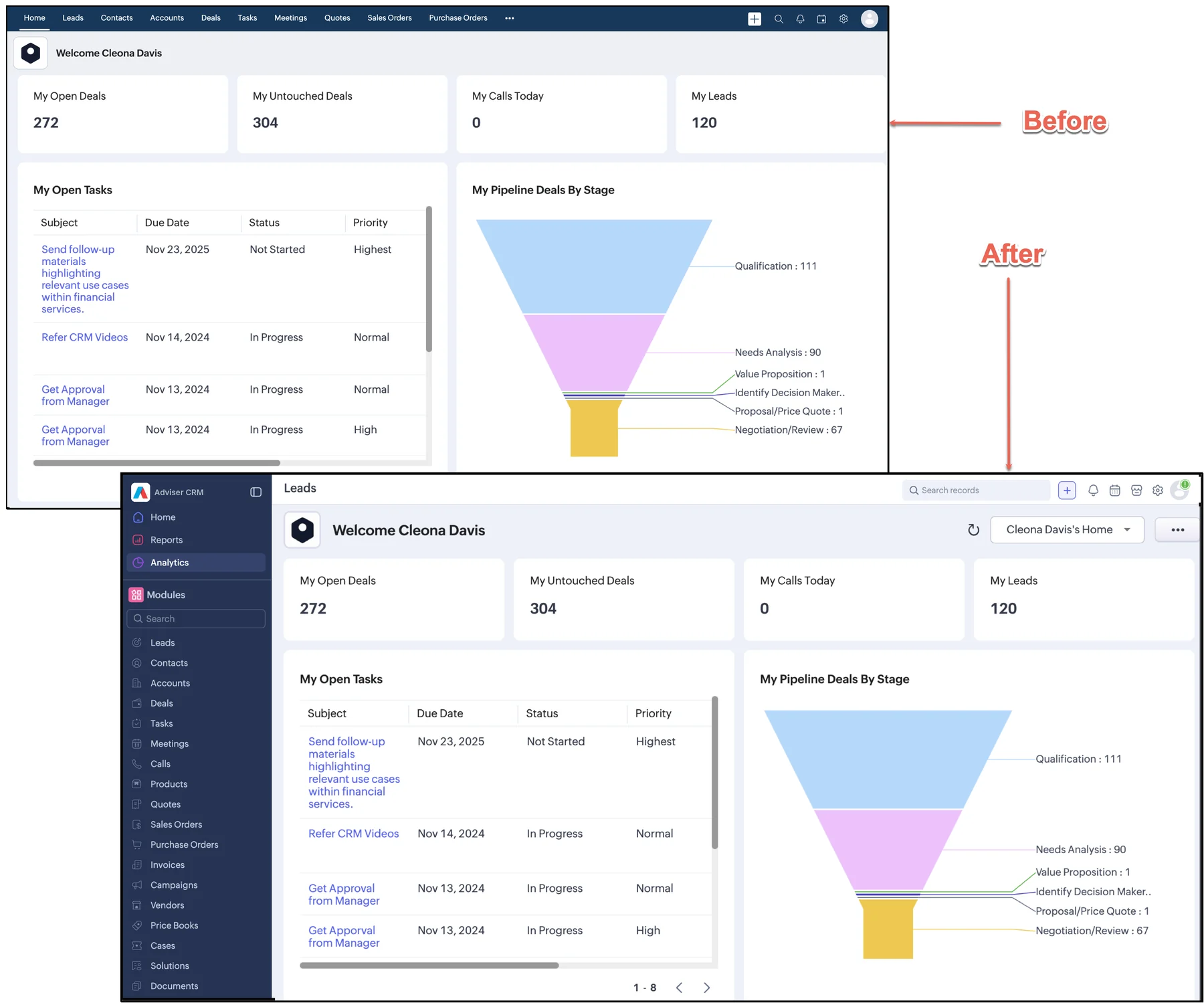
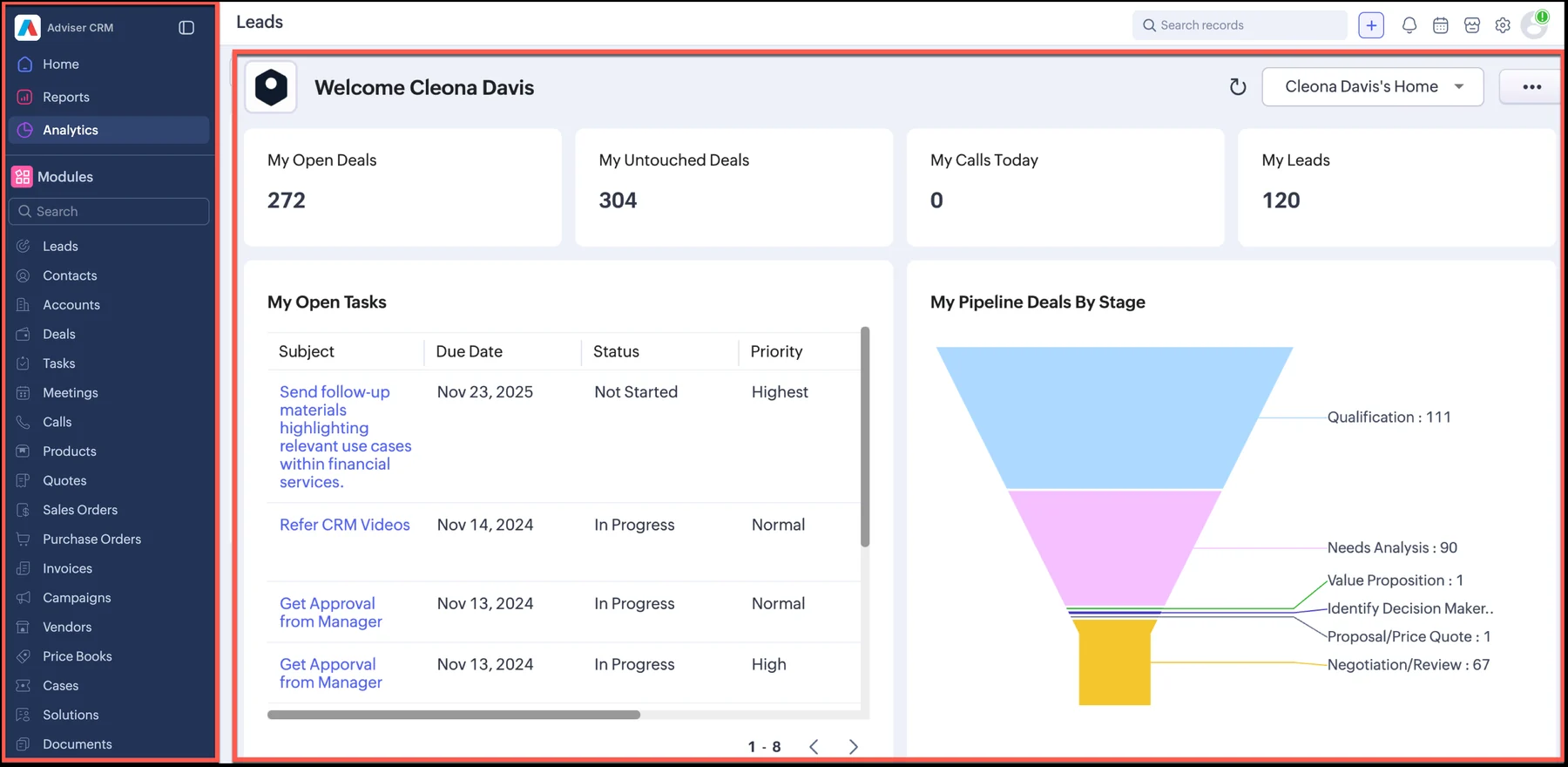
Your screen is now in two parts: a sidebar on the left to move around, and a main pane where you do your work. Choose Leads in the sidebar, for example, and your leads list opens in the main pane.

Product update
We’re rolling out NextGen — a cleaner, easier-to-use Adviser CRM workspace with smarter navigation, new ways to view your records and a dark mode. Everything you can do today still works, just with fewer clicks.
We’re introducing NextGen in two stages, so there are no surprises.
The NextGen interface is built and being prepared for Adviser CRM accounts, so we can test it thoroughly before anything changes for you.
Your Adviser CRM switches over to the new interface automatically. There’s nothing to install and nothing you need to do.
NextGen is all about getting to the things you use every day faster, and making better use of your screen.
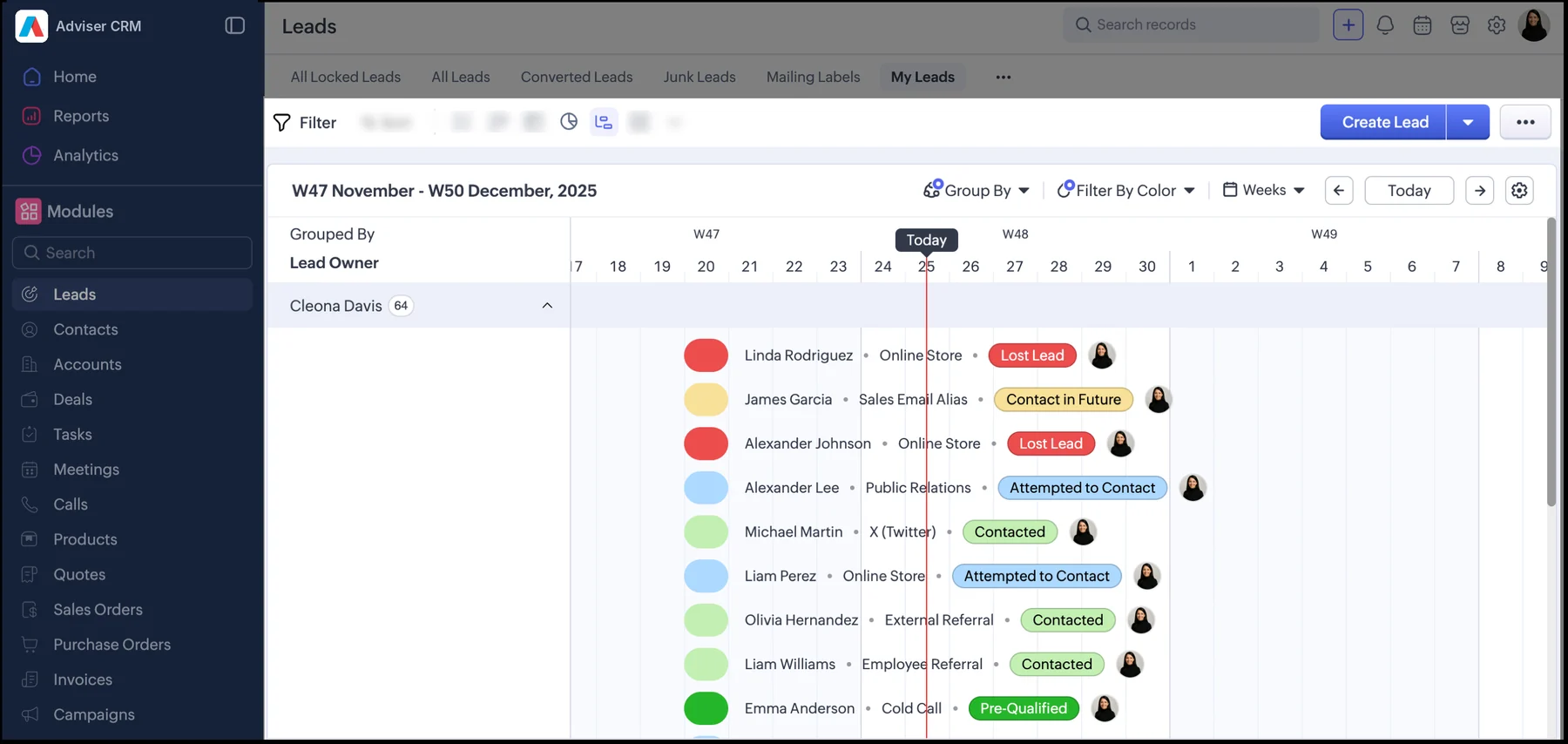
Your screen is now in two parts: a sidebar on the left to move around, and a main pane where you do your work. Choose Leads in the sidebar, for example, and your leads list opens in the main pane.
Need more room? Collapse the sidebar with the icon at the bottom, then click anywhere on it to bring it back.
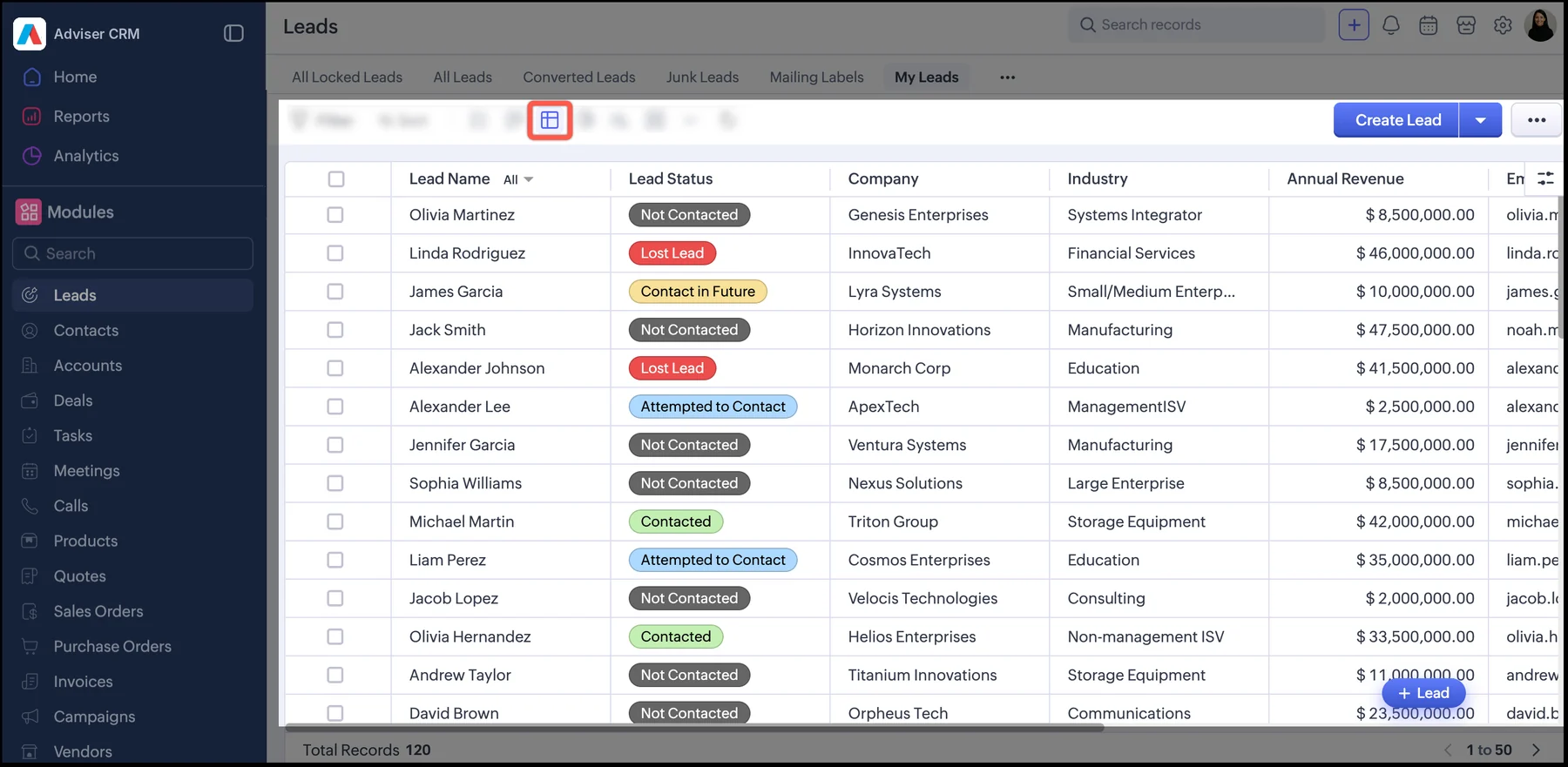
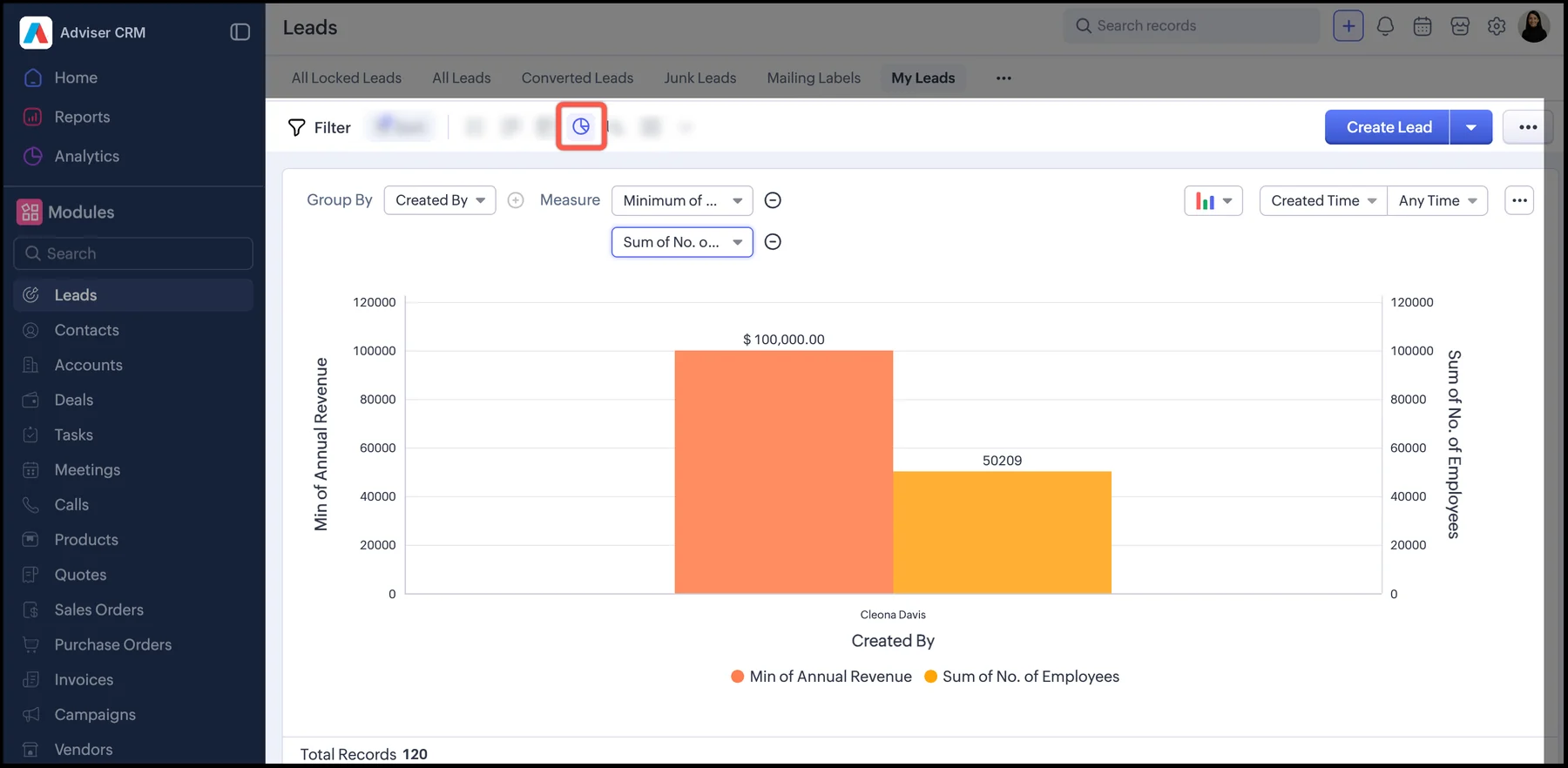
Switch between Split, Grid, Chart and Timeline views to see your clients, policies and loans in whatever way suits the job.
Easier on the eyes for long days, early starts and late nights.
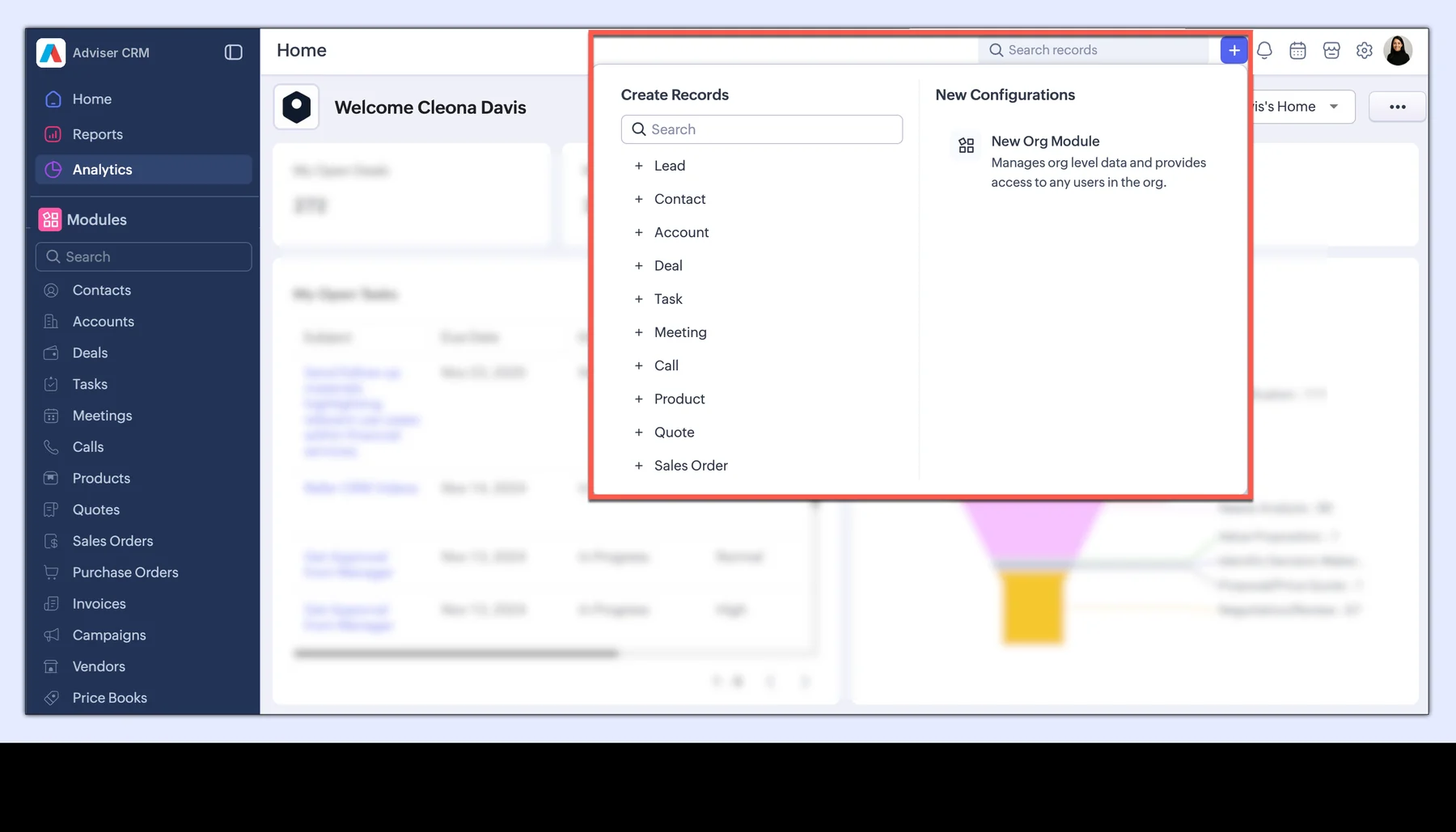
Search now sits at the top of every screen, so you can find records and information across Adviser CRM. The + button lets you create a new record in any module from wherever you are.
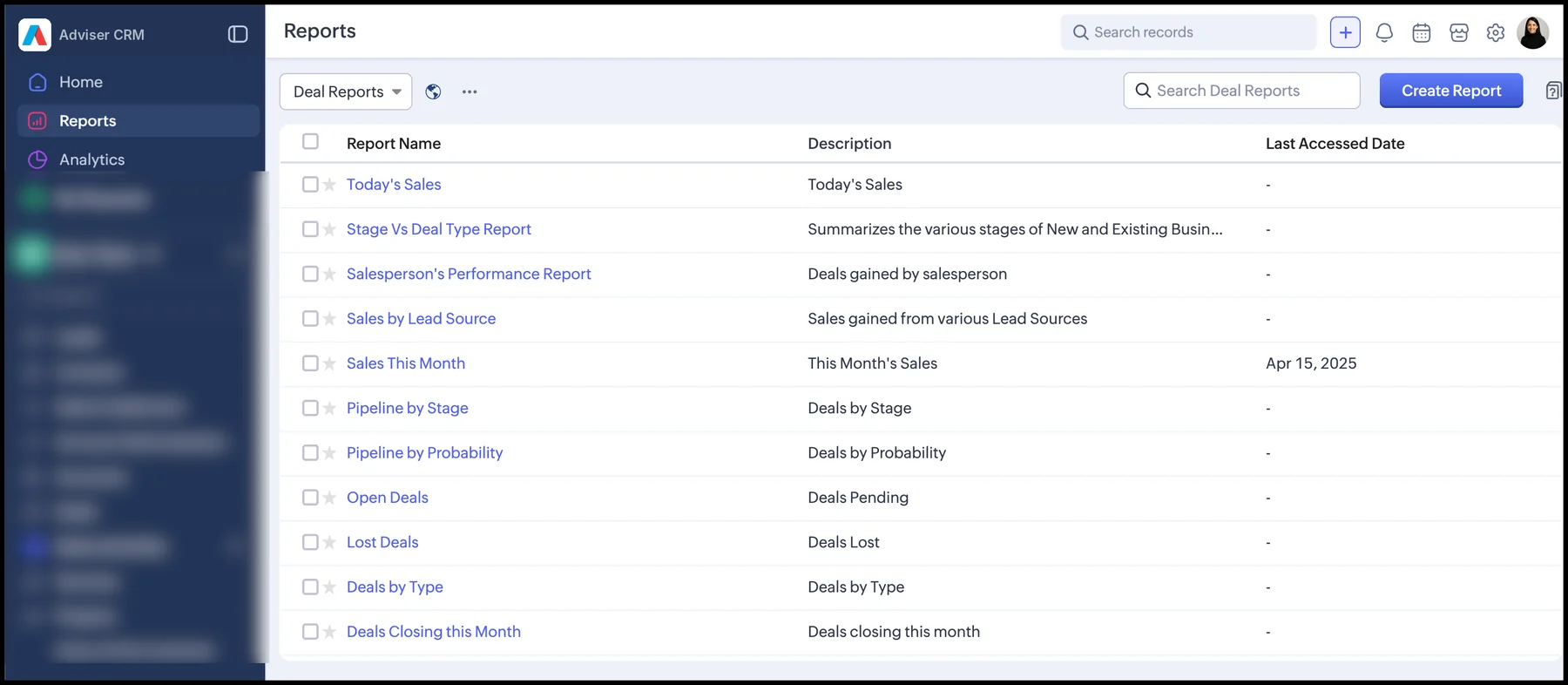
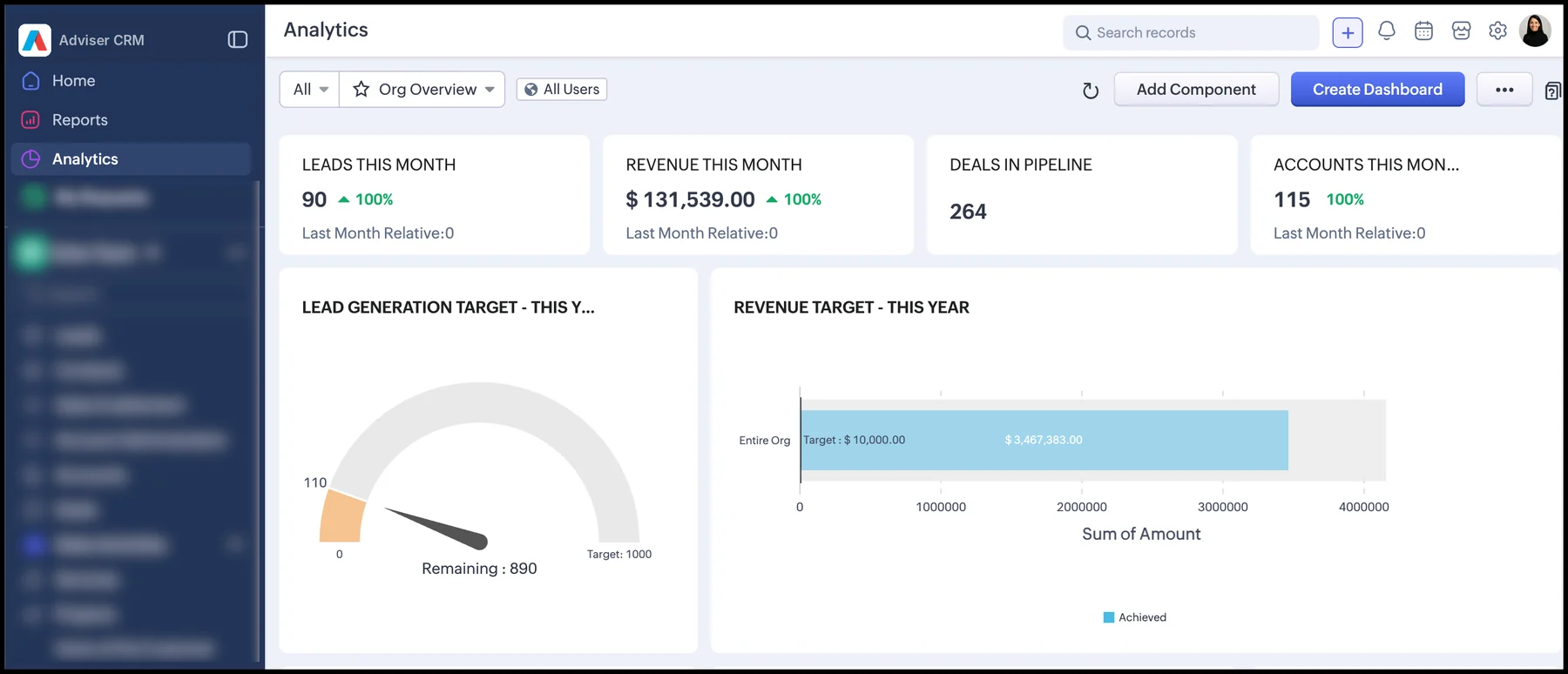
All your reports in one place, organised in their folders. Dashboards live in their own Analytics tab and can be shared with everyone or just selected team members.
A single Interactions view brings a client’s activity together, so you can see the full story in one place.
The layout adapts to your desktop, tablet or phone, so Adviser CRM feels right wherever you are.
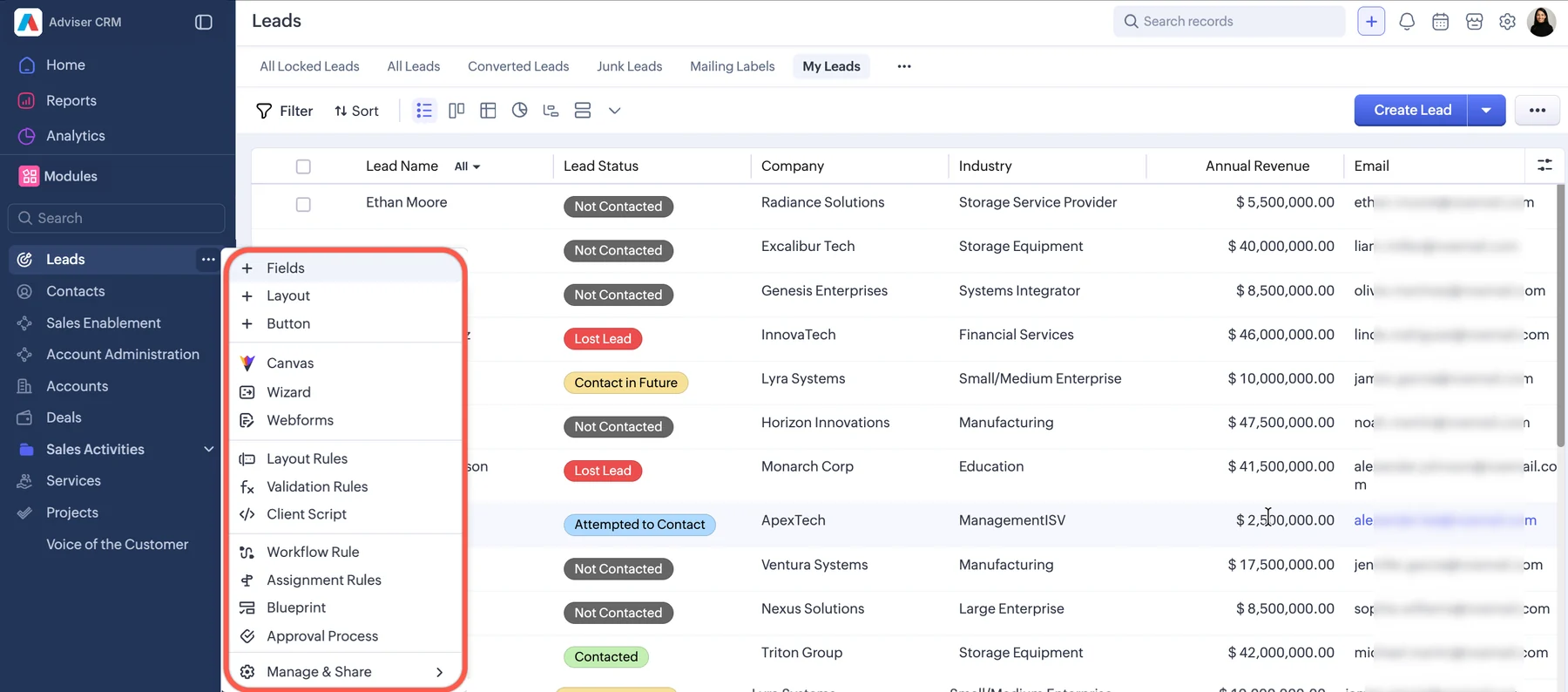
Key settings for each module now sit in the sidebar. Use More to jump straight to automation, field layouts and button settings without leaving the screen you’re on.
Here’s a closer look at the new Adviser CRM workspace.
NextGen changes how Adviser CRM looks, not what’s inside it.
Your colour theme comes across, but it may look a little different in the new layout. You can adjust it once you’re on NextGen.
If you group your tabs today, those groups won’t appear in NextGen. The new sidebar and search make finding things quicker instead.
Teamspaces, Team Modules and Work Queue aren’t available in the new interface yet and are planned for a future release.
Once your account has moved to NextGen, it can’t be switched back to the old look.
If you have questions about NextGen or want us to walk you through the new layout, our New Zealand team is happy to help.